Export / import
Export and import work independently of sync — they’re available whether or not you’re signed in, and cover exactly the data active for your current account (or local guest session).
Export
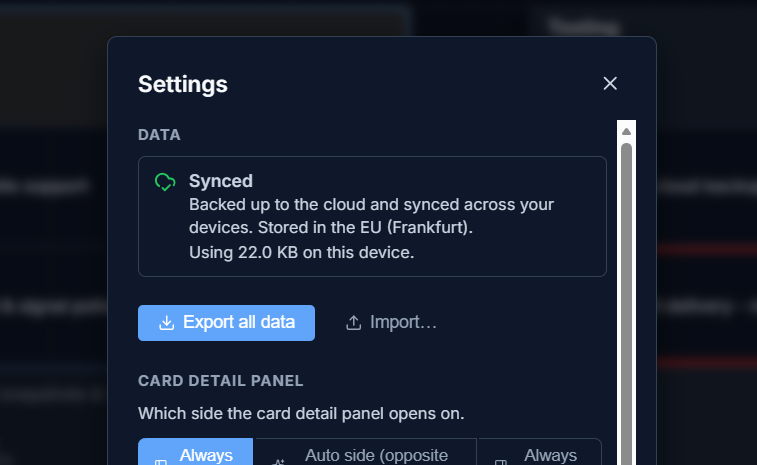
Section titled “Export”In Settings, click Export to download a JSON file of everything in your active data bucket — all boards, columns, and cards.
Import
Section titled “Import”Click Import and choose a previously exported file. G Kanban validates the file before touching anything: it checks the file is a reasonable size, that it’s shaped like a real G Kanban export, and that it doesn’t contain anything that could tamper with your app state. You’ll see a preview (how many boards and cards it contains) and have to confirm before it replaces your current data.
Importing is a full replace, not a merge — back up your current boards with Export first if you want to keep them alongside the imported data.