The detail panel
Click a card (or press Enter on a focused card) to open its detail panel. The panel opens on the side opposite where you clicked, so it never covers the card you’re editing — you can change this in Settings to always open left, always right, or keep it automatic.
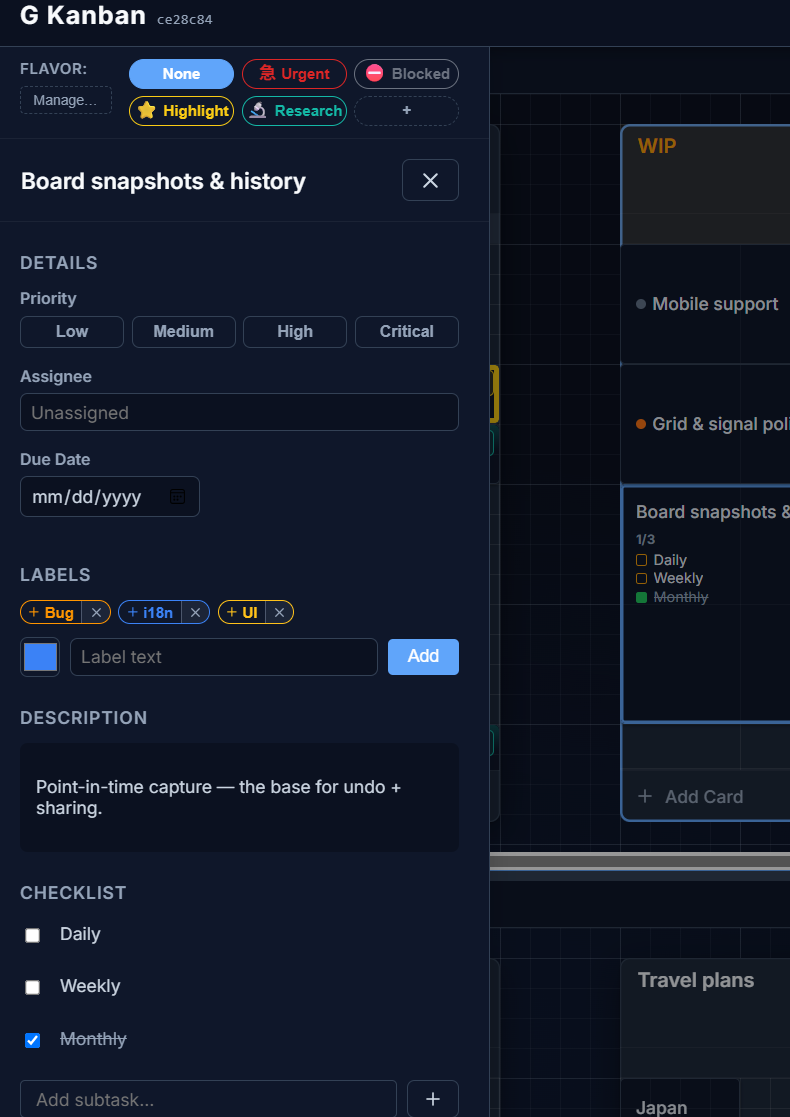
From top to bottom, the panel contains:
- Flavor picker — assign a flavor to the card, or manage your flavor set.
- Title — click to edit inline.
- Details — priority (None / Low / Medium / High / Critical), assignee (free text), and due date.
- Labels — attach existing labels or create a new one.
- Description — a markdown field, click to edit.
- Checklist — add, check off, and delete subtasks.
- Freshness — only shown when Insights is turned on; shows how long the card has been in its column and lets you reset that clock with Mark active.
- Delete card — at the bottom of the panel.
Closing the panel with Ctrl/Cmd + Enter saves and exits in one step.